
How it works

Every request passes a gate the AI does not control.

An AI assistant never talks to Gmail, Drive or Slack itself. It asks PrivacyFence, and PrivacyFence decides, outside the AI, whether the request runs straight away, waits for you, or is refused. The credentials for your services never leave PrivacyFence.

The request flow

From the assistant to your systems, and back.

The request flow: an AI client (Claude Desktop through the PrivacyFence extension, Claude Code over HTTP, or claude.ai through an organization deployment) sends each tool call over MCP to PrivacyFence, which applies policy, runs the local PII check, asks a person for approval where needed and audits the decision, then calls Gmail, Google Drive, Calendar, Slack, Salesforce, Jira, Confluence or Telegram with credentials that stay inside PrivacyFence.
PrivacyFence runs on your own computer or on a server your organization controls. There is no PrivacyFence-operated server in the path.

The assistant connects over MCP

Claude Desktop connects through the PrivacyFence extension (PrivacyFence.mcpb), which ships with the macOS and Windows installers. Claude Code connects straight to the local /mcp endpoint with a token from privacyfence-app --print-mcp-token. In an organization deployment, clients such as claude.ai sign in with OAuth through your identity provider.
How an AI system connects →

Every tool has a gate

Each of the 114 connector tools has a gate fixed in code. Listing and searching metadata runs straight away and is logged. Reading content, such as an email or a file, is reviewed before the result is released. Writes and other changes need your approval before they happen.

Every tool and its gate →

The decision stays outside the AI

On a packaged install PrivacyFence runs under its own service account. An assistant running as you cannot read its credentials, change its rules or approve its own request. Approving takes a person on the Approvals page, and by default a passkey.

The security model →

Then the connector calls the service

Once a request is allowed, PrivacyFence calls the provider's API directly, with the sign-in you gave PrivacyFence. The assistant gets the result, never the credentials.

What each connector can do →

A read, step by step

Reading an email thread that contains personal data.

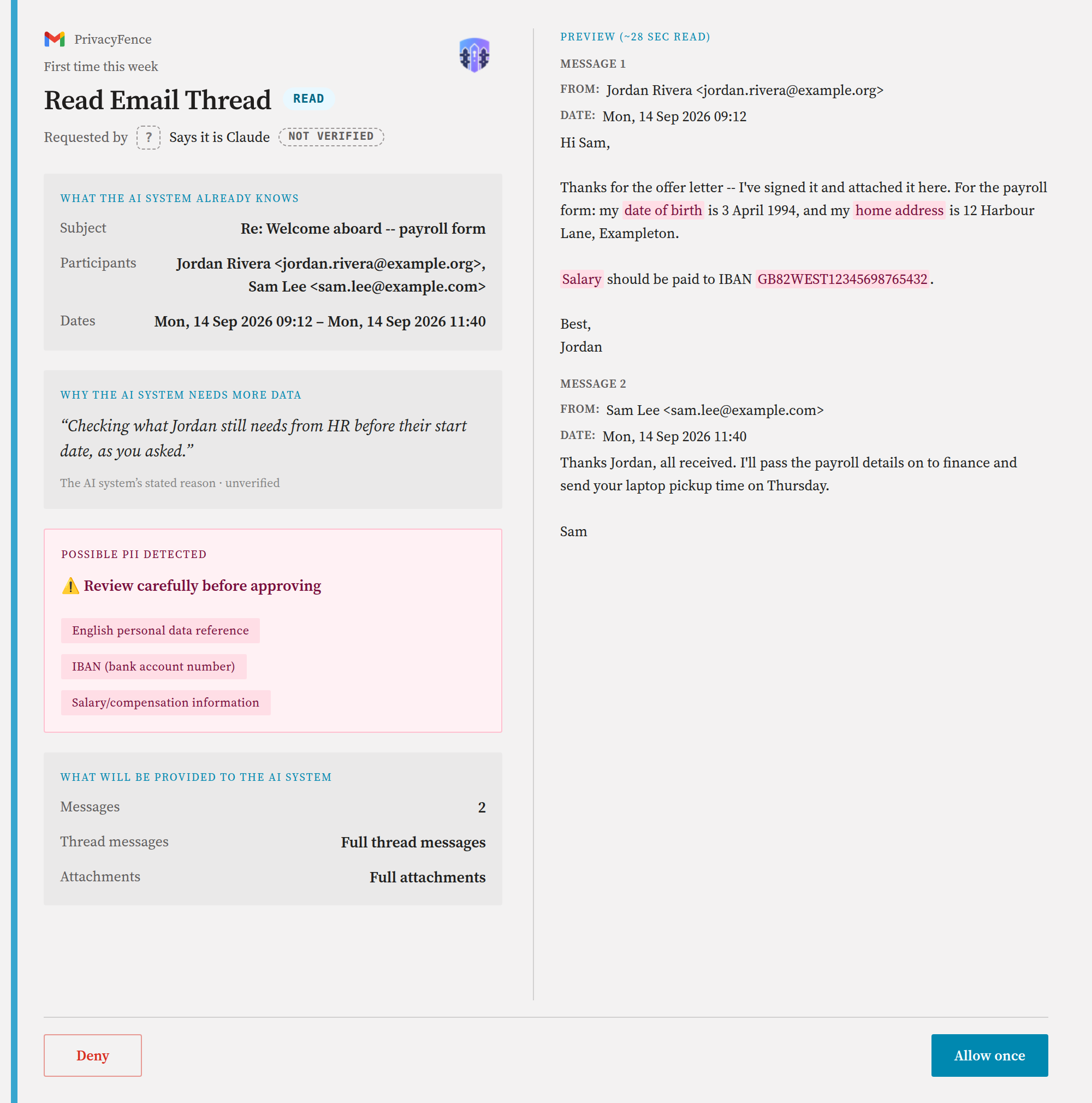
  1. The assistant calls gmail_get_thread and says why. Reading a thread is a reviewed read, and no rule covers it, so PrivacyFence holds the result.
  2. Before you see anything, PrivacyFence fetches the thread and scans it locally for personal data. Here it finds a date of birth, a home address, an IBAN and salary information, and highlights each one.
  3. The card shows what the assistant already knows (subject, participants, dates), its stated reason, who is asking (a name the client sent is marked Not verified), and exactly what will be released.
  4. You choose Allow once or Deny. Because personal data was found, allowing asks for a second confirmation, and a packaged install also asks for your passkey.
  5. If you decide within 30 seconds the call simply returns. Otherwise the assistant gets a link to the card to send you, and repeats the call once you have approved. After a denial it gets nothing from the thread.
  6. The decision goes to the audit log, with the categories found but never the matched text.
How the PII check works →
PrivacyFence approval card for reading a Gmail thread: the requesting AI system marked Not verified, its stated reason, a possible-PII warning listing a personal data reference, an IBAN and salary information, the matches highlighted in the message text, and what will be provided to the AI system
The card for reading a Gmail thread, with the local PII check's findings highlighted. Example data only.

A write, step by step

Writing budget figures into a spreadsheet.

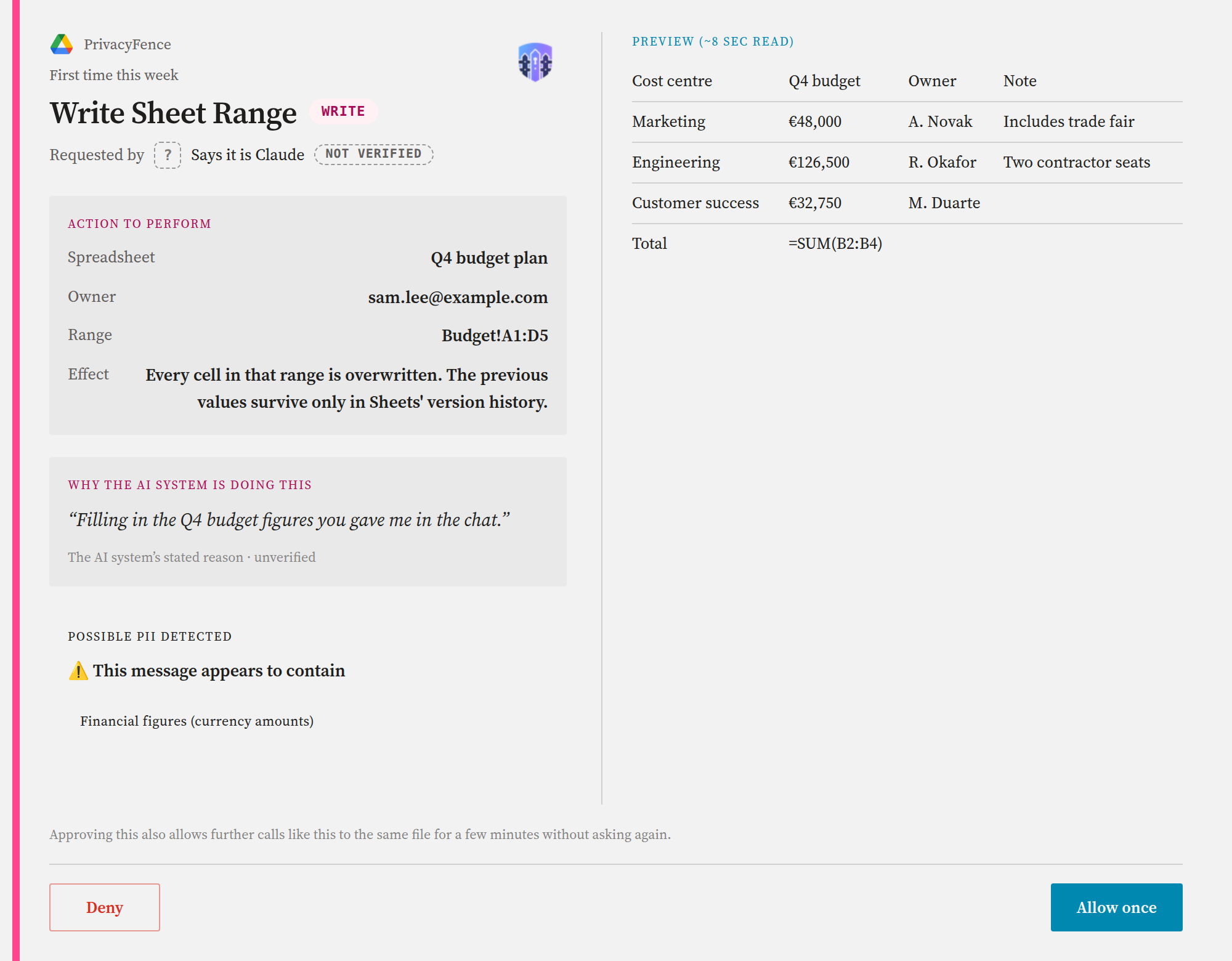
  1. The assistant calls drive_sheets_write_range. It is a write, so nothing changes in the spreadsheet until you approve.
  2. The card names the spreadsheet, its owner and the range, says what the write does (every cell in the range is overwritten), and shows the values and formulas as a table.
  3. A write carries content the assistant wrote itself, so the PII check does not hold it. It notes what it saw, here currency amounts, for your information.
  4. On a packaged install, approving a write asks for your passkey. For this tool, approving also lets further calls like it to the same file through for 5 minutes, held in memory only.
  5. Only then does PrivacyFence write to Google Sheets, and the decision is audited.
What is on an approval card →
PrivacyFence approval card for writing a spreadsheet range: the spreadsheet, its owner, the range and the effect of the write, the AI system's stated reason, an informational financial-figures note, and a preview table of the values to be written
The card for a spreadsheet write, before anything is written. Example data only.

Routine work

Approve the sensitive. Automate the routine.

Always-allow rules

A card's Always allow button, the Settings page, or the assistant itself (with your confirmation) can add a narrow rule: a sender domain, a Drive folder, a Slack channel, a Jira project. Matching requests then run without a card, and are still audited.

Always-allow and policy rules →

Personal data still reaches you

The PII check overrides read rules. A read a rule would let through goes to a card anyway when likely personal data is found in it.

The PII check →

Scheduled runs

An assistant can ask ahead of time whether a call would run without a person. Where an organization turns it on, a run with nobody watching can declare itself unattended, so anything no rule covers is denied at once instead of waiting.

Unattended sessions →

Next

Try it on your own computer.

Install PrivacyFence on macOS, Windows or Linux, connect Claude Desktop or Claude Code, and approve your first request.